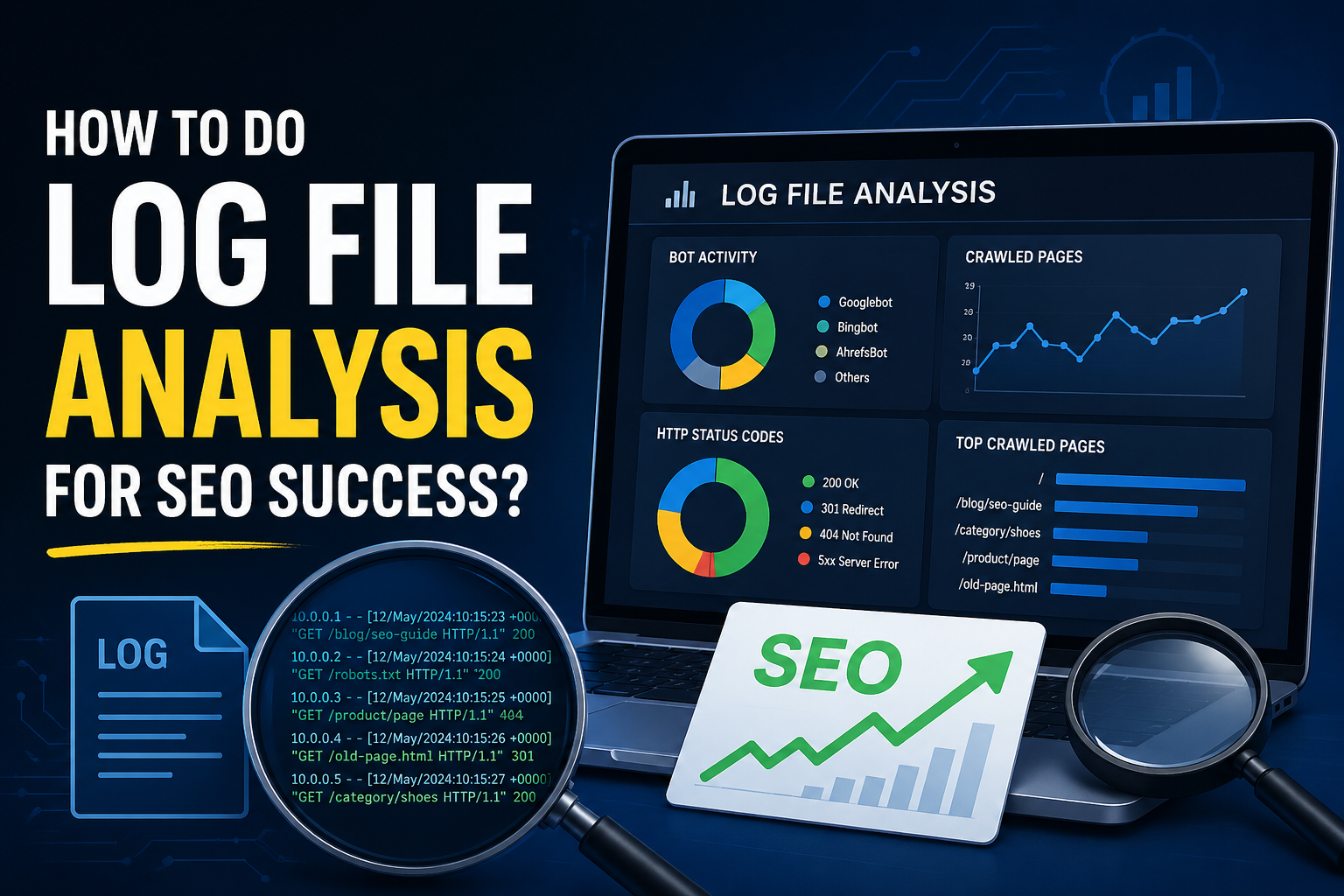
You open Google Search Console and see key pages sliding down. Some new products do not appear for any searches. The site looks fine to you. Traffic and sales still feel weaker than they should. Something is hiding under the surface. Log file analysis is the process of reviewing your web server’s raw access logs to understand how search engine bots crawl your site, which pages they visit, how often they return, and where they encounter errors.
Key Takeaways:
- Log file analysis reveals how Googlebot actually crawls your site — data that standard analytics tools cannot capture.
- You need at least 30 days of raw server logs and a dedicated tool (such as Screaming Frog Log File Analyser) to identify reliable patterns.
- The most common SEO issues found in logs are crawl budget waste on low-value URLs, 404 errors from dead internal links, and important pages that bots never visit.
- Combining log data with a full site crawl uncovers orphan pages and structural gaps that hurt indexation speed.
- Regular monthly log reviews — and weekly checks after major site changes — turn log file analysis into a steady habit that supports long-term organic growth.
On your server sits a plain text file that quietly records every visit from people and from bots. When you learn how to do log file analysis, that hidden file starts to feel less like a mystery and more like a report card from Google itself. It shows which pages Google visits, how often it comes back, and where it bumps into errors.
Standard analytics tools only see human visitors who load scripts in their browser. They miss a big part of the picture. Search engine bots often do not load these scripts, so their visits stay invisible in normal dashboards. Log files act like a diary for your website. Every hit gets a line. That makes them perfect for deep website crawl analysis without guesswork.
“Without data, you’re just another person with an opinion.” — W. Edwards Deming
When you look directly at server logs, you get answers to questions that normal analytics cannot touch, such as:
- Which pages does Googlebot crawl most often?
- How soon after publishing does Google visit new content?
- Where does the bot hit 4xx and 5xx errors?
- Which parameters, filters, and internal searches waste crawl budget?
In this guide I walk through what log files are, how to grab them from your host, which tools help you read them, and a clear step-by-step process to follow. I also share the main problems I look for in client projects and how to turn those findings into simple actions. By the end you will know how to read these files well enough to spot lost revenue and fix it.
What Is a Log File and Why Should You Care?

A server log file is a simple text file your web server writes all day long. Every time someone or something asks for a page, image, script, or file, the server adds one more line. That line tells you who asked, what they asked for, and how the server replied. According to Google, sites with more than 1 million pages can see Googlebot visit only a fraction of their URLs in any given month — making log data essential for understanding real crawl coverage.
A typical line from an Apache access log might look like this:
66.249.66.1 - - [12/Mar/2026:10:15:32 +0000] "GET /category/shoes/ HTTP/1.1" 200 15432 "-" "Mozilla/5.0 (Linux; Android 6.0.1; Nexus 5X) Googlebot/2.1"
You do not need to remember every field, but it helps to know the basics because they are the clues you use when you run log file analysis for SEO later.
- IP Address tells you where the visit came from. It is like the house number for that browser or bot on the internet. You can use it to spot real search bots and also fake ones. Some tools even check these addresses for you so you do not need to worry about it.
- Timestamp tells you exactly when the server handled the request. You can group these times by hour or day to see patterns. That helps you see when Google comes most often. It also helps you spot short windows where the server breaks.
- Requested URL shows the exact page or file the visitor asked for. This is where you see which product pages get attention and which do not. You can sort by this field to see where bots spend their time. It also reveals pages that sit in your system but never get seen.
- Status Code shows how the server replied. A 200 code means success. A 404 code means the page did not exist. Codes that start with 5 mean the server had an error. Watching these codes over time tells you a lot about site health.
- User Agent tells you what type of visitor made the request. It might be a real person using Chrome on a phone. It might be Googlebot on mobile or desktop. It might be a bad script trying to scrape your content.
This data matters because it shows things normal reports cannot see. If Googlebot keeps visiting the same old collection pages and never reaches new arrivals, you will not notice that in simple web log analysis. You see it in proper server log analysis when you line up all the visits and look for gaps. That view lets you fix crawl issues before they hurt traffic and sales.
How to Access Your Server Log Files?

Your server log files are stored by your hosting provider and can be accessed through your control panel, FTP, SSH, or a direct support request — each method takes less than ten minutes once you know where to look. Most hosting setups keep them in easy-to-reach places, and grabbing logs becomes a simple habit once you have done it once. Research suggests that fewer than 30% of SEO professionals regularly pull raw log files, meaning this step alone puts you ahead of the majority.
There are a few common paths you can follow.
- cPanel on shared hosting is the first place many site owners should check. After you log in to your hosting panel, look for sections with names like Metrics or Logs. Inside you often see links that let you download raw access logs for each site. Hosts usually compress these files, so you may see them with file names that end in
.gz, which you can unzip on your computer. - FTP or SFTP tools help when you want to pull files straight from the server folders. You connect with an app such as FileZilla, then move into folders with names like
logsorvaror similar. Inside you find access files that hold each day or each month of visits. You can copy them to your laptop and keep a local archive. - SSH access is common on virtual private servers or dedicated machines. You open a terminal, connect to the server, and move into the log folder using basic commands. From there you can copy or merge files and then download one combined file to inspect.
- Support from your host is often the fastest route for non technical teams. You can open a ticket and ask for “raw server access logs for the last thirty days”. When you use that exact phrase, staff members usually know what you want and send a link or file.
When you speak with hosting support, it helps to ask:
- Which format are the logs in (Apache, Nginx, IIS)?
- How long do they keep old logs before they delete them?
- Are there separate logs for HTTP and HTTPS traffic?
Some hosted platforms, such as Shopify and other software as a service tools, do not share these raw logs at all. In those cases you may rely more on Search Console data and crawling tools. If you sit behind a content delivery network like Cloudflare, logs on your main server may show its addresses instead of real visitors. You can then pull logs from the content network or ask a developer to store the real address header.
For helpful server log file analysis you should try to collect at least a full month of data. Bigger stores often work with 60–90 days so they can see reliable patterns. Later you can load the files into an online log analysis tool or any log file analyzer online you prefer.
The Right Tools to Analyze Your Logs

Choosing the right log analysis tool is the most important decision in this workflow, because the software you pick determines how quickly you can filter millions of log lines down to the handful of patterns that actually matter for SEO. A small site can create thousands of lines per day, while a busy e-commerce store can easily generate 5 to 10 million lines per month — far beyond what any text editor can handle. You need software that can filter, group, and chart the data so patterns stand out.
The simple name for this type of software is a log analyzer. There are many choices. Some live on your computer. Others run in the browser and store data on their servers. Some are simple. Others aim at large teams.
Here is a simple comparison that matches most common needs.
| Tool | Type | Best For | Cost |
|---|---|---|---|
| Screaming Frog Log File Analyser | Desktop app | Consultants, agencies, growing stores | Paid yearly |
| Semrush Log File Analyzer | Cloud app | Marketing teams that share dashboards | Paid inside Semrush plans |
| JetOctopus | Cloud app | Large online stores and content sites | Paid subscription |
| Microsoft Excel or Google Sheets | Spreadsheet | Tiny sites and learning practice | Free or bundled |
| Command line tools such as grep and awk | Command line | Very technical users on huge files | Free |
For most store owners and marketing managers, Screaming Frog Log File Analyser is the sweet spot. It is built for search work, not general system logs. It handles very large files on a normal laptop. It lets you combine logs with a full crawl of your site. It also checks whether visits that claim to be Googlebot really come from Google, which keeps your data clean. This is one of the most focused log file analysis tools for day to day search work.
Cloud platforms like Semrush and JetOctopus act more like full web log analysis software. They shine when you have very large sites or need several people to view the same reports. They also help when your files are simply too large for a single computer to handle. JetOctopus, for example, can process up to 500 million log lines per project — a scale that desktop tools cannot match.
Spreadsheets can work when you only have a few thousand lines and want to see how fields line up. They are nice for training and demos. They start to fail once file sizes grow. For very large files, some teams filter them first with command line tools, then load the smaller result into Screaming Frog or other Screaming Frog log file analyzer options. In rare cases you might even test a dedicated IIS log analyzer on Windows servers or use separate tools to analyse Apache logs and analyze Nginx logs when you manage many systems.
When you pick a tool for log file analysis for SEO, check:
- How many lines it can handle per upload.
- Whether it can verify real search engine bots by IP.
- If it can combine crawl data with log data.
- How easy it is to export tables for your reports.
Step-by-Step Log File Analysis Process

Once you have the files and a tool ready, you can follow a clear path. I use almost the same path in each project at my consulting service . The steps stay simple. The answers change based on the site and the goals. You can follow this same path for SEO log file analysis on any store or content site.
- Define what you want to find.
You might want to know why new products never appear in search. You might want to check if Google visits less after a redesign. You might want to see if bots waste time on filters and search pages. Clear questions keep you focused while you work and stop you from getting lost in the data. - Download your log files.
Use the hosting panel, file transfer tool, or server access you saw earlier. Try to collect at least thirty days. If the files arrive in compressed form, unzip them on your machine. Keep the originals in a safe folder so you can always go back if you make a mistake while joining or filtering. - Join files when you have more than one.
Many servers store one file per day. Some also use one file for each server in a cluster. If you work on Mac or Linux you can open a terminal, move into the folder, and run a simple command that glues files into a single one. On other systems you can use tools that join text files together. The idea is to see one clean file in your SEO log analysis tool, instead of clicking through dozens of small ones. - Import the data into your chosen software.
In Screaming Frog you drag and drop the file into the window. In cloud tools you upload the file from your computer. The tool then parses the lines, splits fields, and builds charts and tables. If you use a SEO log analyzer that links with a crawler, you can also point it at a fresh crawl of your site at this stage so URLs line up across both data sets. - Filter for search engine bots.
Raw logs include people, bots, scripts, and more. For search work we care most about Googlebot and sometimes Bing. You can filter by user agent name or pick bots from a drop down in your tool. Good tools also test the internet address behind each visit to confirm that Googlebot crawl behavior is real, not faked. This keeps bad scrapers out of your analysis. - Look for patterns and problems.
Sort pages by how many times Googlebot saw them. Check if your key money pages appear near the top or far down the list. Look at the codes Googlebot gets. Focus on errors and redirects. Check when each page was last seen. Note any important pages that seem to have zero visits from the bot. At this point you start to build a list of clear issues. - Merge this data with a full crawl of your site.
Export a fresh crawl from a tool such as Screaming Frog. Join that export with your log data using the page address as the key. Now you can see pages that exist in your structure but never appear in logs. You can also see pages that Googlebot visits that your crawl did not reach. This form of joined website crawl analysis is where many hidden issues finally show up.
These steps take some work the first time you try them. After a few runs you will move through them much faster. The clarity they give you on real bot behavior pays back that time many times over.
What to Look For Key SEO Issues Log Files Reveal
Log files can feel dense at first. Underneath that noise sit a few patterns that matter far more than everything else. When I work on client sites, I tend to look for the same families of issues again and again. Once you know these patterns, each new set of logs starts to make more sense.
Crawl Budget Waste

Search engines give each site a rough crawl budget. That means they only want to visit a certain number of pages in a given time. If bots spend that allowance on low value pages, your important content waits longer for visits. That slows down how fast new products or articles start to rank. Good crawl budget optimization starts with spotting these waste areas. Studies of large e-commerce sites show that up to 40% of all Googlebot visits can be consumed by low-value parameterized URLs, leaving key product and category pages crawled far less frequently than they should be.
In the logs you might see hundreds of visits to pages with long strings of filters and tracking marks in their web address. These often show as question marks followed by sort and color options. On large stores you may see long stretches of visits to filter pages that no real shopper would ever use. You may also see bots visit pages you have marked as noindex or pages that only send the visitor on to somewhere else.
Common signs of crawl waste in logs include:
- Very high crawl counts on internal search URLs.
- Many hits on URLs with UTM or tracking parameters.
- Filter combinations that have zero or near-zero sales.
- Repeated hits on endless pagination or calendar pages.
You can cut this waste with a few direct moves:
- Block some filter patterns in your
robots.txtfile once you are sure they do not carry useful traffic. - Add clear canonical tags on pages with many versions so search engines know which one you care about.
- Update internal links so they always point at the clean, final address rather than a redirect.
- Remove or limit faceted navigation options that create thousands of thin pages.
Over time that work guides bots back toward the pages that earn you money.
Think about a store with ten thousand products where bots keep spinning on filters instead of fresh arrivals. Fixing this waste can mean bots see new stock days or weeks sooner. Industry data suggests that resolving crawl budget waste can reduce the time to first crawl for new pages by as much as 50% on large sites. That can easily turn into faster sales and less stock sitting unseen on the shelf.
Technical Errors and Uncrawled Pages
Log files are also a sharp tool for spotting hard technical problems. Standard reports often hide them or show them in small samples. Logs show every single time a bot hits a broken or weak page.
Status codes that start with 4 mean the page is broken for the bot. When you see many visits to 404 pages, that means Googlebot keeps following dead links. Some of those links may live on your own site. Others may come from old posts on other sites. Each hit wastes crawl budget and leaves the bot with nothing helpful. Fixing these often starts with adding redirects or cleaning up old links inside menus and content.
Codes that start with 5 are more serious. These tell you the server failed during the visit. Sometimes that happens during busy times at night or during backups. If you see patterns where the same pages show a mix of success and server errors, bots may stop trusting those pages. In bad cases they can even drop from the index for a while.
A simple approach to handling error patterns you see in logs:
- Group 4xx and 5xx hits by URL.
- Check whether those URLs are linked from your menus, sitemaps, or key templates.
- Fix internal links first, then add redirects for important URLs with backlinks.
- Escalate repeated 5xx errors to your hosting or development team quickly.
Uncrawled pages sit in a different bucket. These are pages that appear in your site crawl but never show up in logs for Googlebot. They may sit too deep in the structure, or they may not have strong links from other pages.
Orphan pages show the opposite pattern. They appear in logs, so bots find them, but your own crawl never sees them because nothing links to them. Think of these as rooms in your house with no doors. On average, SEO audits of mid-size sites uncover that 15–25% of all indexable URLs are either orphaned or buried more than 3 clicks deep — both conditions that log analysis can pinpoint within minutes.
Fixes here focus on:
- Adding clear internal links from high authority pages.
- Including key pages in your XML sitemap.
- Removing or redirecting content that no longer has a role.
- Checking that important pages are not blocked by
robots.txtor meta robots tags.
When you cross-check logs with a crawl this way, your internal link map often becomes much clearer.
How to Turn Log File Findings Into Action?
Reading log files gives you a long list of possible fixes. That list can feel heavy the first time you see it. The key is to sort by impact. Start where you can stop the biggest losses in traffic and revenue with the least effort.
Here is a simple way to group what you find.
| Priority | Issue Found | Action to Take |
|---|---|---|
| Critical | Codes that start with five on key pages for Google | Ask your developer to check server load and hosting setup right away |
| High | Important pages never visited by Googlebot | Add clear internal links and place them in your XML sitemap |
| High | Many 404 hits from bots on old or broken pages | Fix or remove links, add redirects for strong pages with links |
| Medium | Bots spend time on long filter and tracking addresses | Use canonical tags and robots rules to guide them to clean pages |
| Low | Chains of redirects before bots reach real pages | Update all links to point straight at the final address |
You can also split your to‑do list into quick wins and longer projects:
- Quick wins: fix internal links to 404s, shorten redirect chains, add missing sitemaps.
- Longer projects: rework faceted navigation, refactor templates that cause 5xx errors, redesign site structure.
“What gets measured gets managed.” — Peter Drucker
Log work gives best results when you turn it into a regular habit. For steady sites you can run this check each month to watch long term trends. During a redesign, change in platform, or big content move, it helps to run it each week. Each big round of changes can create new patterns in how bots behave. Checking logs right after large updates tells you if those patterns help you or hurt you.
This kind of clear, ordered work is at the center of what I do with my clients. I connect files, crawl data, and human behavior to see which fixes will actually move revenue, not just tidy reports. Often that means a focused technical SEO audit that turns log findings into a simple roadmap for your team. If you feel stuck even after you gather the data, asking for that outside view can save a lot of time.
Conclusion:
Server logs give the most honest view of how search engines see a website. They do not sample. They do not guess. They simply record every visit from every bot and every person. When you learn to read them, you stop guessing why rankings move and start working with real evidence.
You do not need to write code or become a data scientist to use them. You only need a clear goal, access to a month of data, and a friendly tool. From there the main questions stay simple:
- Are bots reaching the right pages often enough?
- Are they wasting time on pages you do not care about?
- Do they hit errors when they try to read key content?
For stores and brands that live on organic traffic, faster indexation leads to new products ranking sooner. Fewer crawl errors lead to a healthier site. A healthier site brings more search visits and more sales over time. In my SEO Consulting service, I treat log work as one of the quiet habits that supports that kind of steady growth. If this guide helped open that hidden file in your mind, share it with your team and consider making log file analysis a regular part of how you care for your site.
Frequently Asked Questions
How often should I perform log file analysis?
For most sites, a monthly review is sufficient to track long-term crawl trends and catch new issues before they affect rankings. If you have recently migrated your site, launched a major redesign, or made significant structural changes, run a log analysis weekly for at least the first 60 days after the change. Large e-commerce sites with more than 50,000 URLs benefit most from a continuous monitoring setup using a cloud-based log analysis tool.
Can I do log file analysis if I use Shopify or another hosted platform?
Most fully hosted platforms like Shopify do not provide access to raw server logs. In that situation, your best alternative is to use Google Search Console’s crawl stats report, which shows Googlebot activity at a summary level, combined with a regular site crawl using a tool like Screaming Frog. Some enterprise Shopify plans and certain third-party apps may offer partial log access, so it is worth checking with your platform’s support team.
What is the difference between log file analysis and a site crawl?
A site crawl simulates what a bot sees by following links from the outside in. It shows you what pages exist and how they connect. Log file analysis shows you what actually happened on the server — which pages real bots visited, how often, and with what result codes. The two data sets are most powerful when combined: crawl data reveals what should be happening, while log data reveals what is actually happening. Gaps between the two are where the most valuable SEO fixes are usually found.
How much log data do I need to get reliable results?
A minimum of 30 days of data is recommended for most sites. Smaller sites with low traffic may need up to 90 days to collect enough Googlebot visits to identify meaningful patterns. Larger stores with hundreds of thousands of pages often work with 60 to 90 days of logs to ensure that crawl frequency data is statistically reliable across the full URL set.

Ankit Prajapati
Digital Marketing Professional | SEO Consultant | Teetotaller | Music Buff | Early Bird. "Love to do SEO for Humans, not for Bots." As an SEO Consultant, I will identify the opportunities to make your website user-friendly, improve visibility, traffic and leads. I also help SEO freshers and experienced SEO professionals in resolving their SEO errors and their queries for free, which extends my skill sets.
Comments are closed